
The why and when of Workspaces
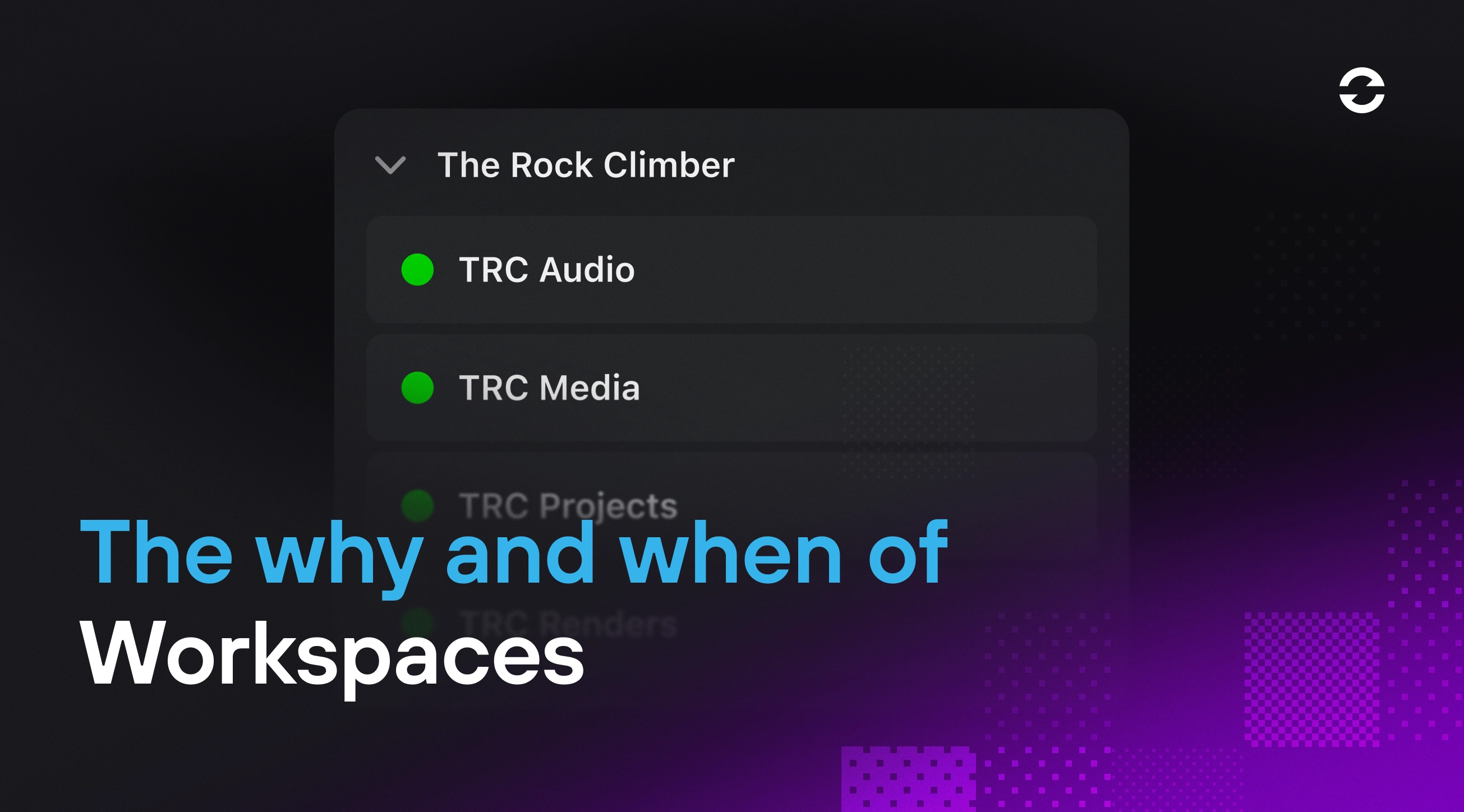
If you’ve been following this blog over the past few months, you’ll know the Mimiq team has been on a mission to add a wealth of conveniences around Workspaces. Today’s blog is a look at how we got here: a little recap, and an introduction to the final piece of the puzzle: Workspace Groups.
Why use Workspaces?
A refresher: Mimiq’s Workspaces sit between your actual storage and Media Composer, providing the collaboration layer MC needs to share projects, bins, and media. They can turn any folder on any storage into something Media Composer plays ball with.
But how to best set up your Workspaces? When working with Media Composer, there are generally two approaches to managing storage: either you have one share that contains everything, or you create a set of shares for each production - one for project files and bins, one for media, one for SFX, etc. Workspaces are for the latter situation.
NAS
When setting up your NAS, people tend to create a single logical volume and then share folders on that volume. Whether it’s an SMB, AFP, or an NFS share, Mimiq enables bin locking functionality for each. Zero fuss, and no need for Workspaces as it’s the NAS that creates the shares - right?
Well, it’s not very flexible if you have a lot going on. Having to rely on one person on your team to create shares each time just doesn’t scale in today’s high-turnover environment. The result: most NAS users tend to stick to a single share, one that contains all their data.
But… that introduces another downside. No, not security. While true, as everybody has access to everything, all the time, it’s simply a reality for most teams anyway.
However, everybody also includes Media Composer. MC will happily access - and index - everything you have. As you can imagine, that’s not great for performance; you don’t want Avid to needlessly index media and projects.
Cloud
Similar to NASs, Mimiq provides top-level bin locking for the main cloud drive providers, LucidLink, Suite Studios, and also the just-released Frame.io Drive.
These cloud drives are typically mounted as a single volume, with the ability to create multiple independent volumes, at a cost. Some offer ways to mount a single volume multiple times with different root paths, but that’s (again) hard to manage, especially in an SSO/SAML situation.
On top of that, cloud drives tend not to be configured out of the box with write permissions in the root, a hard requirement for Media Composer. Quite often, we run into teams that can’t get Media Composer to work with their cloud drive, only because they don’t know about root folder write permissions. Editors are not storage managers, after all.
SAN
SANs used to be the only storage option fast enough to work with multicam video footage, but in the last decade, there’s been a definitive shift towards NAS, thanks to 10GE and 25GE Ethernet.
SAN volumes are a whole different beast, though; they’re not recognizable as network shares but are identified as block-based storage (like your SSD). That means you need an in-between: Workspaces. But if you automatically need a Workspace for each share, why bother with shares at all?
Two problems, one stone
To make shared storage work optimally with Media Composer, you’ll need to address two issues: share management and curtailing Avid's access to everything you have. Mimiq’s Workspaces address both in one go.
Good Things Come In Threes
At Hedge, our development philosophy is not to build space shuttles - we don’t want to introduce a slew of knobs, buttons, and options in our apps to solve all possible scenarios in one big update. Instead, we publicly iterate and solve one thing at a time.
After each iteration, we check how clients use the new functionality and whether the already envisioned next big step is what they need. That’s exactly what we did here - three parts make one big solution:
Managed Workspaces
Sort, Search, and Filter
Workspace Groups
Managed Workspaces
Historically, Mimiq’s Workspaces were tied to a client - on the PC or Mac, an editor would create a set of Workspaces once, and then leave them be. Each editor would do this on their respective machine. That’s great for small teams that work on a single project for a long time. But many of Mimiq’s customers have not 5 editors but between 50 and 500. Obviously, that needs scaling.
So, we introduced Managed Workspaces: a way to create a Workspace once and then share it with all editors in one click.
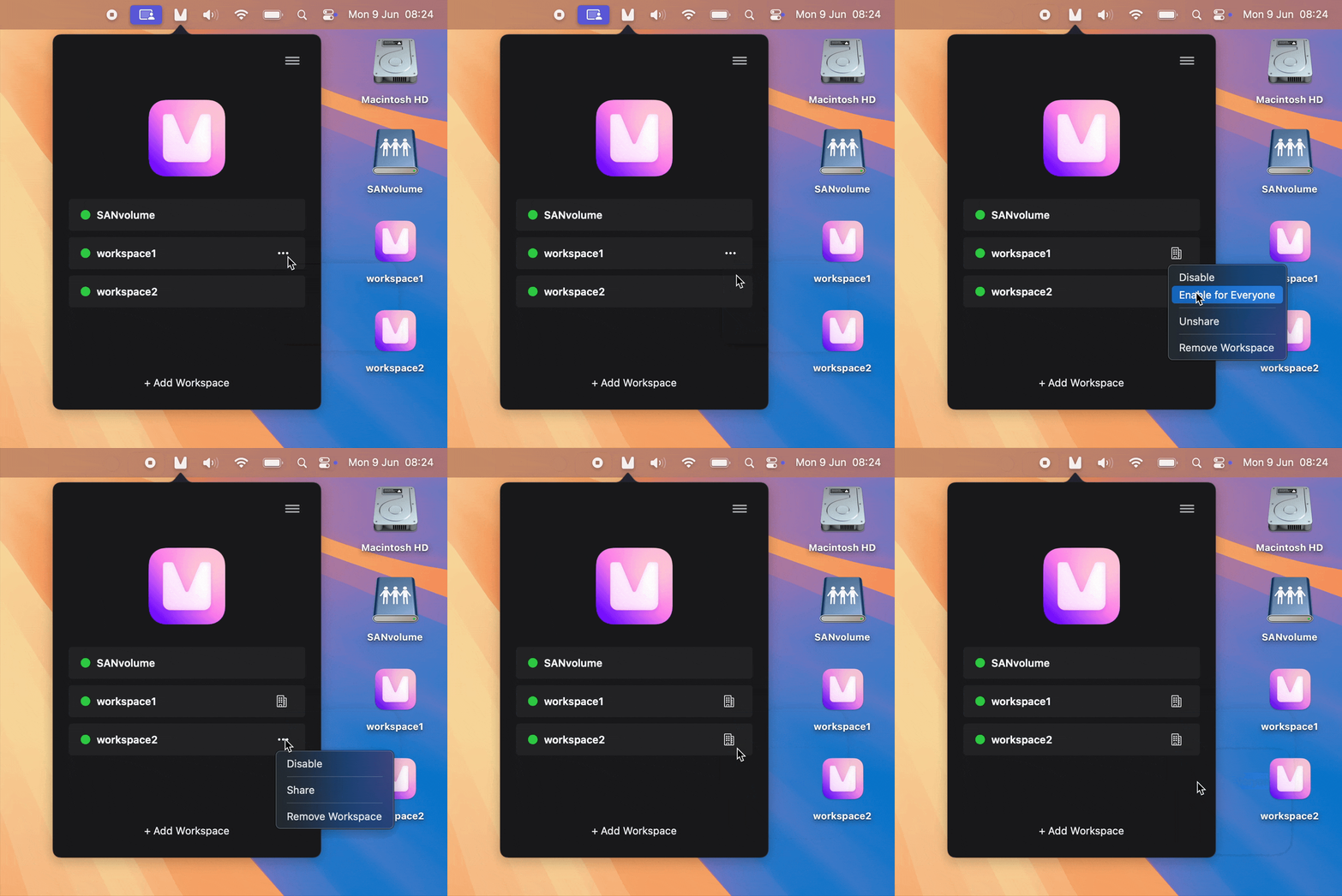
From the get-go, we ensured compatibility with orchestration, enabling you to automate the creation and management of Workspaces from your preferred orchestration or project management platform. Both Ortana’s Cubix and StorageDNA’s DNAFabric already offer integrations.
Sort, Search, and Filter (+ Discover!)
Multiply a handful of Workspaces by a few Media Composer jobs, and things start to get messy, fast. As your Workspace count grows, so does the need for structure.
Imagine you have thirty Workspaces and you need to find a specific one. You’ll need Search, pronto. And what if you have Workspaces configured across multiple shared storage devices? Sorting and filtering would be quite helpful with that.
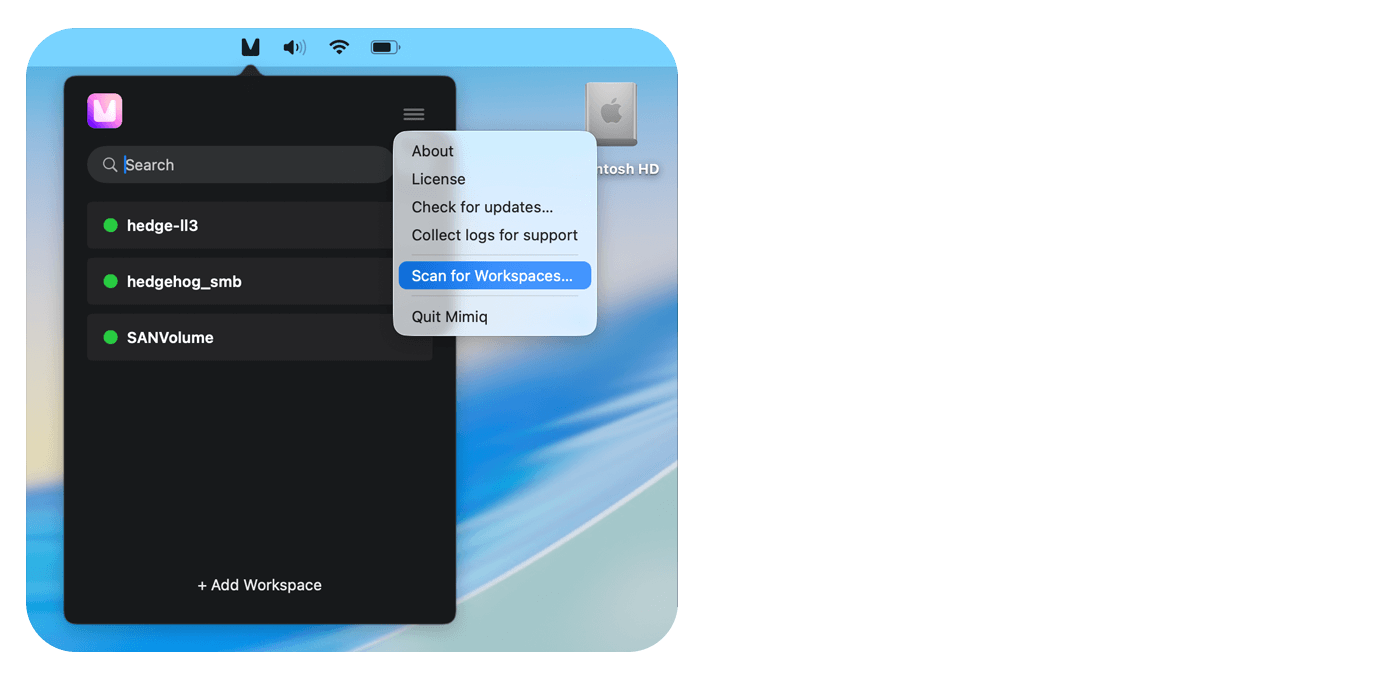
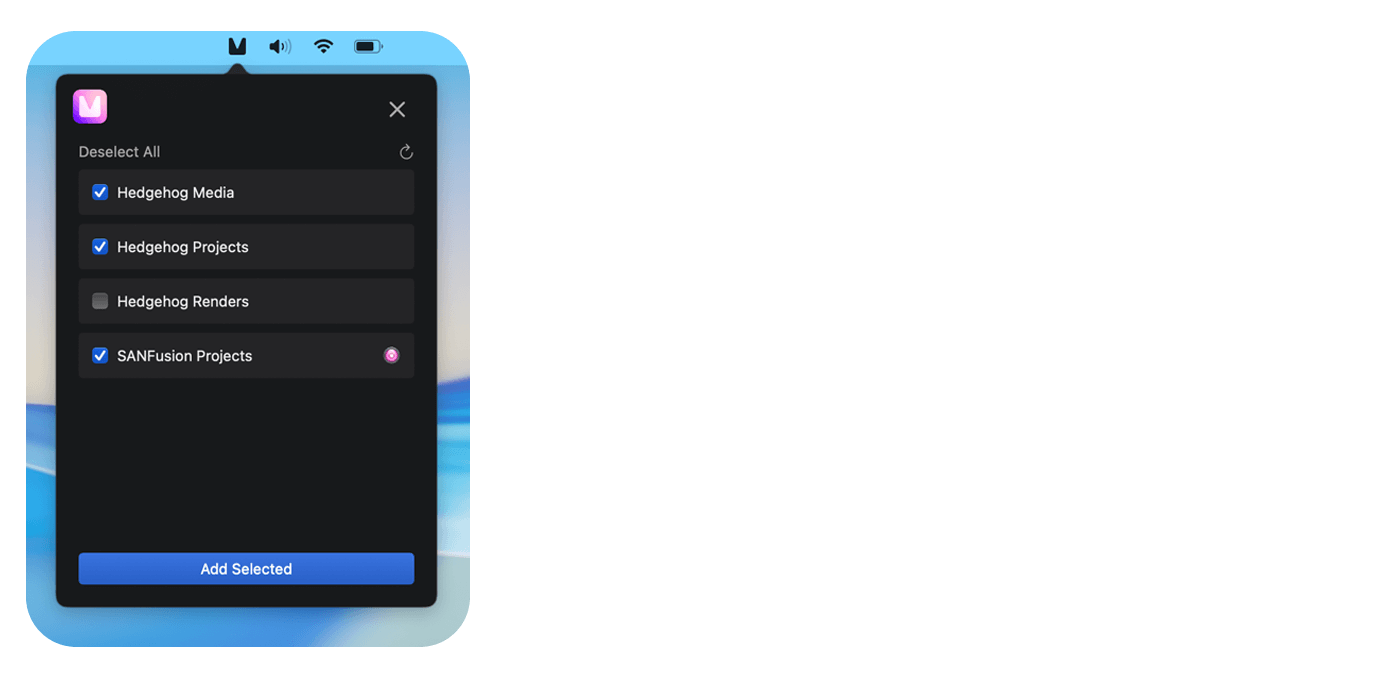
On top of that, we introduced a handy feature to automatically discover all Avid MediaFiles folders, as it’s quite likely that you’ll want to turn their parent folders into Workspaces too.
Still using the now-defunct SANFusion app? No need to migrate a thing - Mimiq is equipped to detect existing SANFusion bundles.
Workspace Groups
Today’s release of Workspace Groups adds the final organizational layer you need to work with Media Composer at scale.
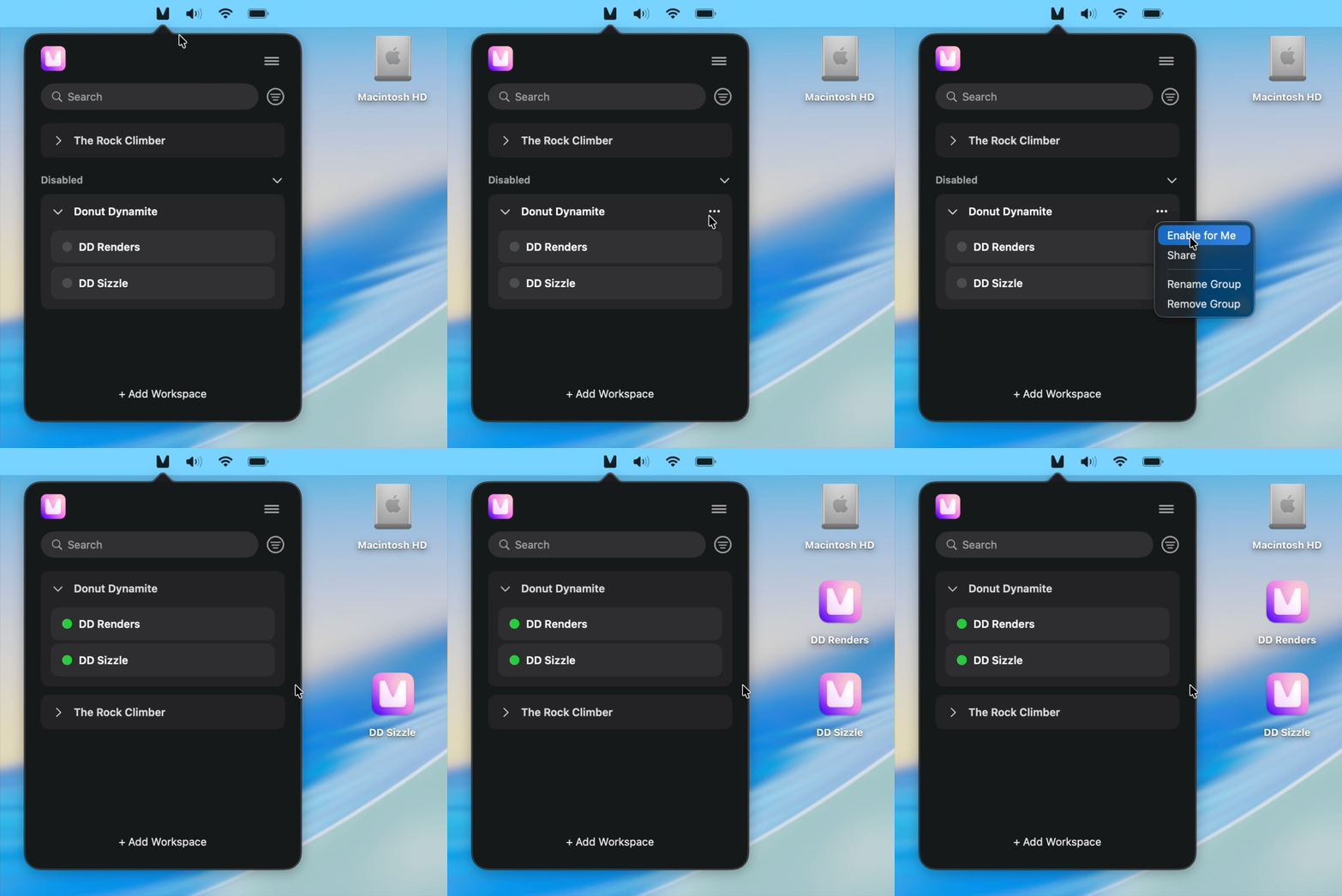
Instead of searching for those Workspaces that belong to the show you’ll be working on today, how about finding and mounting them with one click? Meet Workspace Groups.
By grouping a set of Workspaces and sharing them as a whole with the rest of your team, everyone stays on the same page. Give your Groups a proper name, and no editor will ever waste time setting up their storage again.
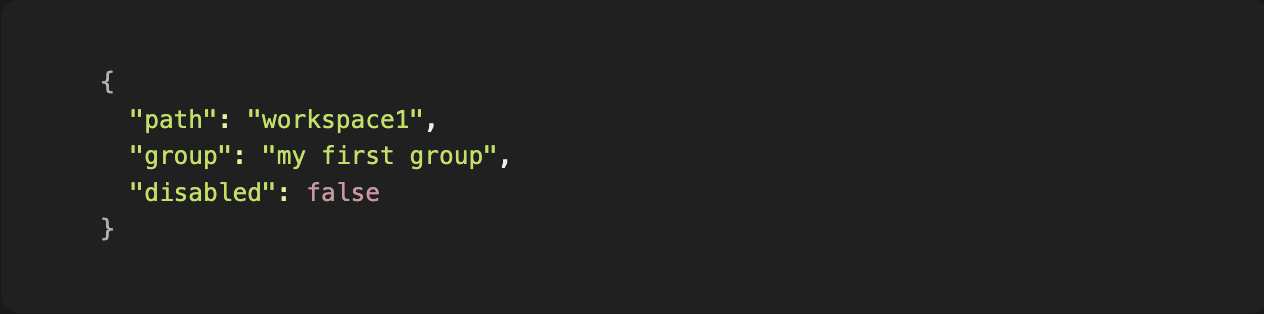
For those of you on the workflow side of things, for you, Workspace Groups require nothing but a JSON that lives on your storage - besides letting Mimiq create them for you, you can create these manually, or use an orchestration layer. Mimiq will handle all the rest, without requiring additional settings:
When to use Workspaces?
Workspaces are limited only by a system’s resources, as they do have a small but real amount of overhead. Some guidelines come in handy:
If you’re working with a NAS, best practice is to export multiple shares using your storage appliance. Mimiq will detect these automatically and enable bin locking at the top-level. In this case, Workspaces can still be useful, but they’re not required. Standard Mimiq is the right fit here.
If you have NAS but need to use a single share and thus can’t limit Avid’s scope? Workspaces are your ticket. Have a NAS that doesn’t offer write permissions in the root of the volume? Workspaces.
For larger teams or facilities, you need structure to get through the day. In this setting, you likely have multiple teams, each working with different shared or cloud volumes, each hosting their own sets of grouped Workspaces. In these environments, Workspace Groups help keep everything aligned across the team and, if needed, orchestrate deployment.
If you’re working on a SAN or in the cloud, Workspaces become an even bigger power horse. A handful of shared Workspaces per job goes a long way. Set them up once, organize them into Groups, and share them with the team to keep everyone on the same page.
Setting Up
Choosing the best setup for your team is not always obvious. If you’re still in doubt after reading this article, hit us up with an email - we’ll be able to help ✌️