
OffShoot Reports
When asked why people use OffShoot, the third reason often cited (after speed and security) is paper trail: Finder doesn’t leave a trace of its copies, whereas OffShoot logs everything it does in Transfer Logs.
Transfer Logs are a great paper trail, but pretty dry and only paint the picture of one transfer at a time. When handing over production data, something with a bit more overview is useful.
Enter Reports, telling you the whole story of your production’s data in one easy-to-read PDF. A handover document for a job well done.
It Takes A Village
When building a feature like Reports, you can easily end up building too much; especially with the wealth of metadata available nowadays, it’s tempting to create reports that contain too much, to cater to each and every use case. After a decade of crafting the easiest-to-use DIT tool available, we wanted to do the same for Reports.
So, we built Reports in public. Over the course of a year, we refined our course thanks to a few dozen of you actively using our Early Access releases. Feeding back ideas on a daily basis, together we went through a bunch of iterations:
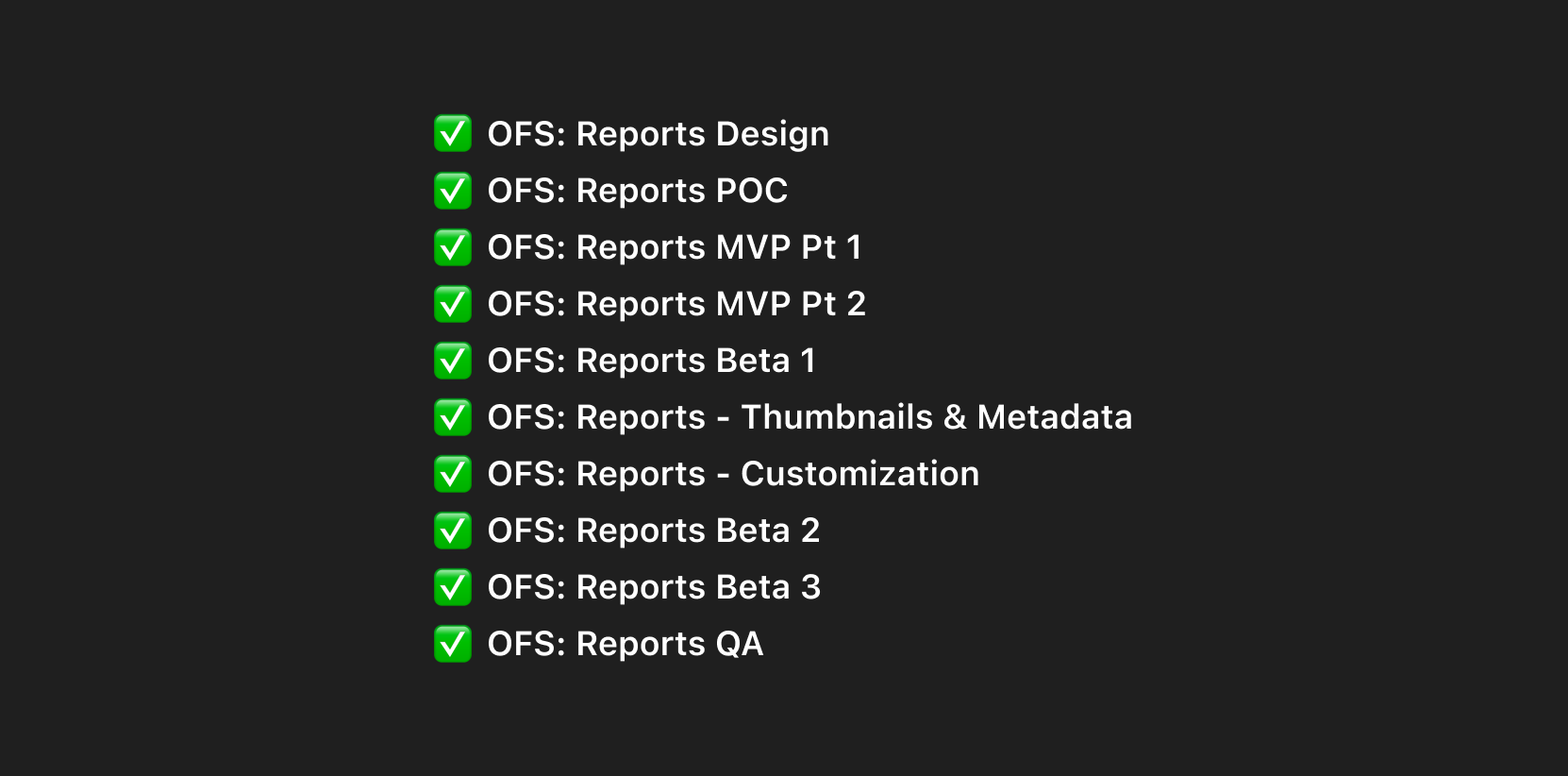
Thanks to all your great input and feedback; it’s the way we like to build the tools you love to use - and ensure they work for you. Big shoutout to Massimo, Wyatt, Robin, and Michael 🙏
After three Beta iterations, the first official Reports release is here.
Top Down
While writing Transfer Logs is integral to a transfer, deciding when to create a Report is more subjective. Some might want to do so after the last transfer of the day, some may want to bundle a couple of days, and some might do multiple shoots on a day that all need their own Reports. (One of the Beta Track users even created a report of a year-long project, with 1978 camera cards - a 258-page PDF 😅)
So, that’s why we decided not to automatically create Reports; we let you decide when to do so - you can combine any amount of Transfer Logs into a single Report:
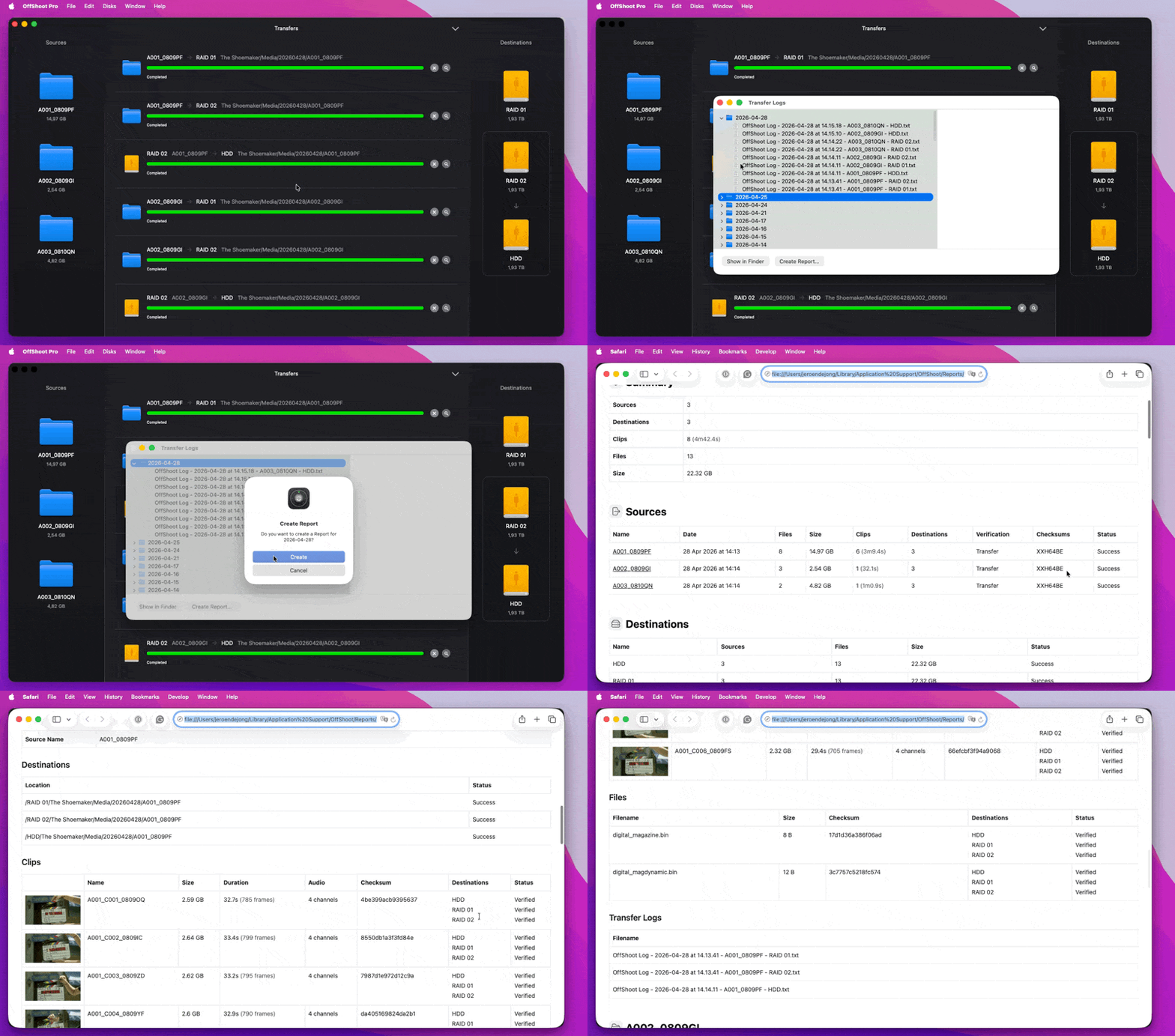
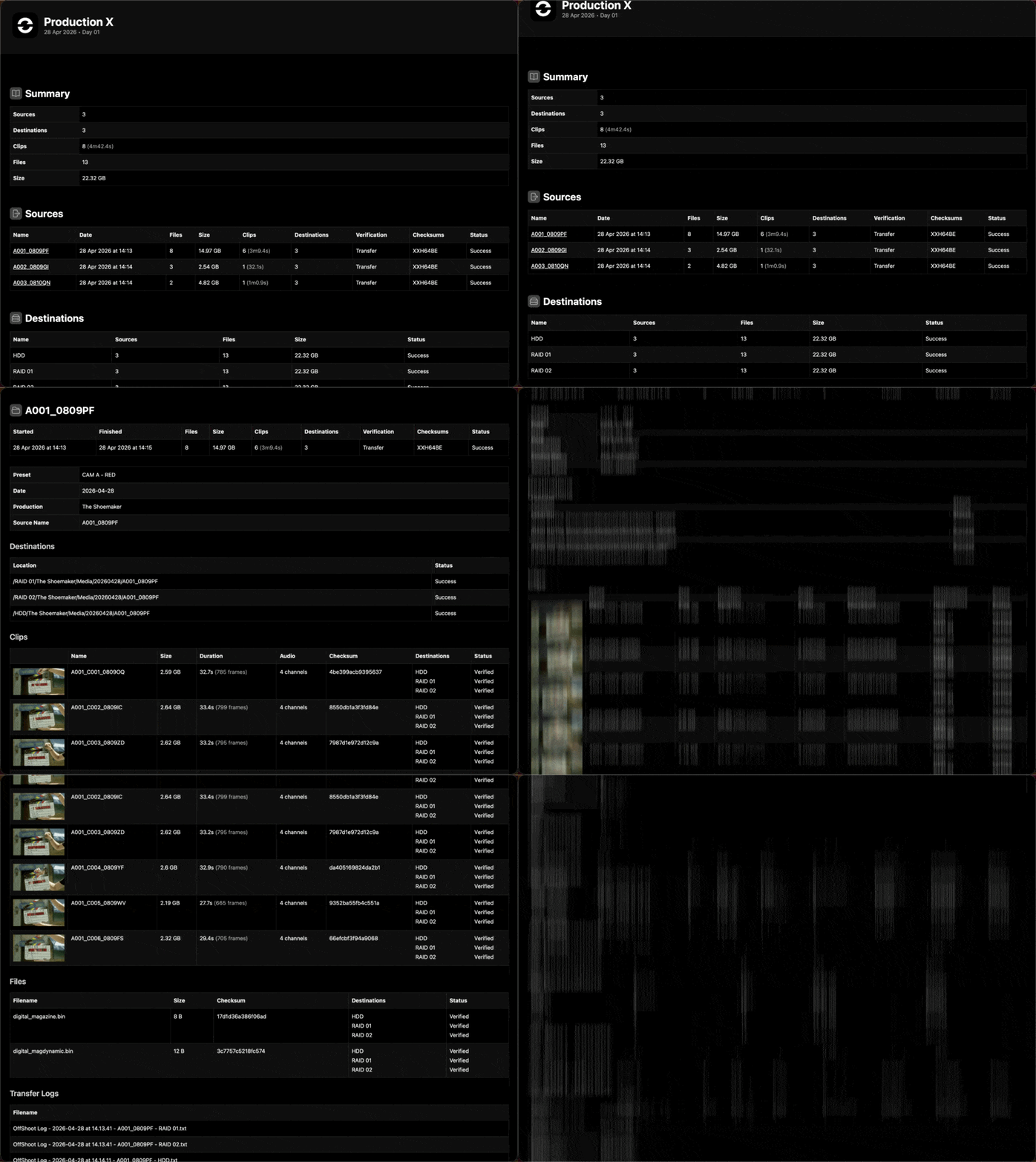
Reports are organized top-to-bottom; quickly confirm all Sources are copied and verified, and then drill down into per-source details.
Summary
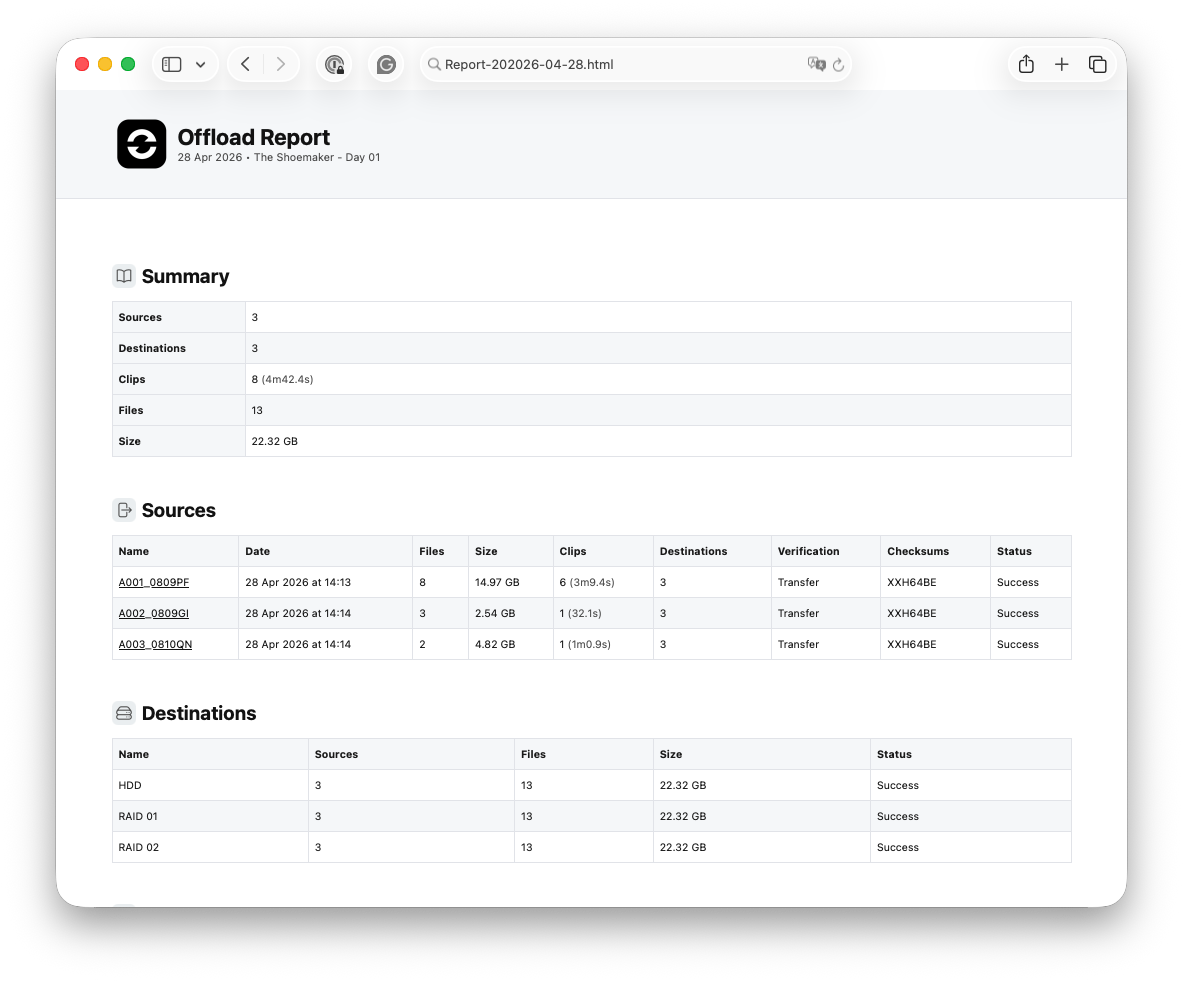
What’s in a name? The Summary section shows you the number of Sources, Destinations, and Clips. As many of you use OffShoot for non-media copies as well, we tally the file count and include the total size of all transferred data.
Sources & Destination
For most of you, this is the important section: it tells you which cards were offloaded, whether all were backed up multiple times (twice or thrice, hopefully), and which verification mode was used.
The other end of the equation, Destinations, tells you which backup contains what. For instance, if you’re doing a standard “everything is backed up twice” workflow, you should see two destinations with the same number of source files and equal total sizes.
Source Details
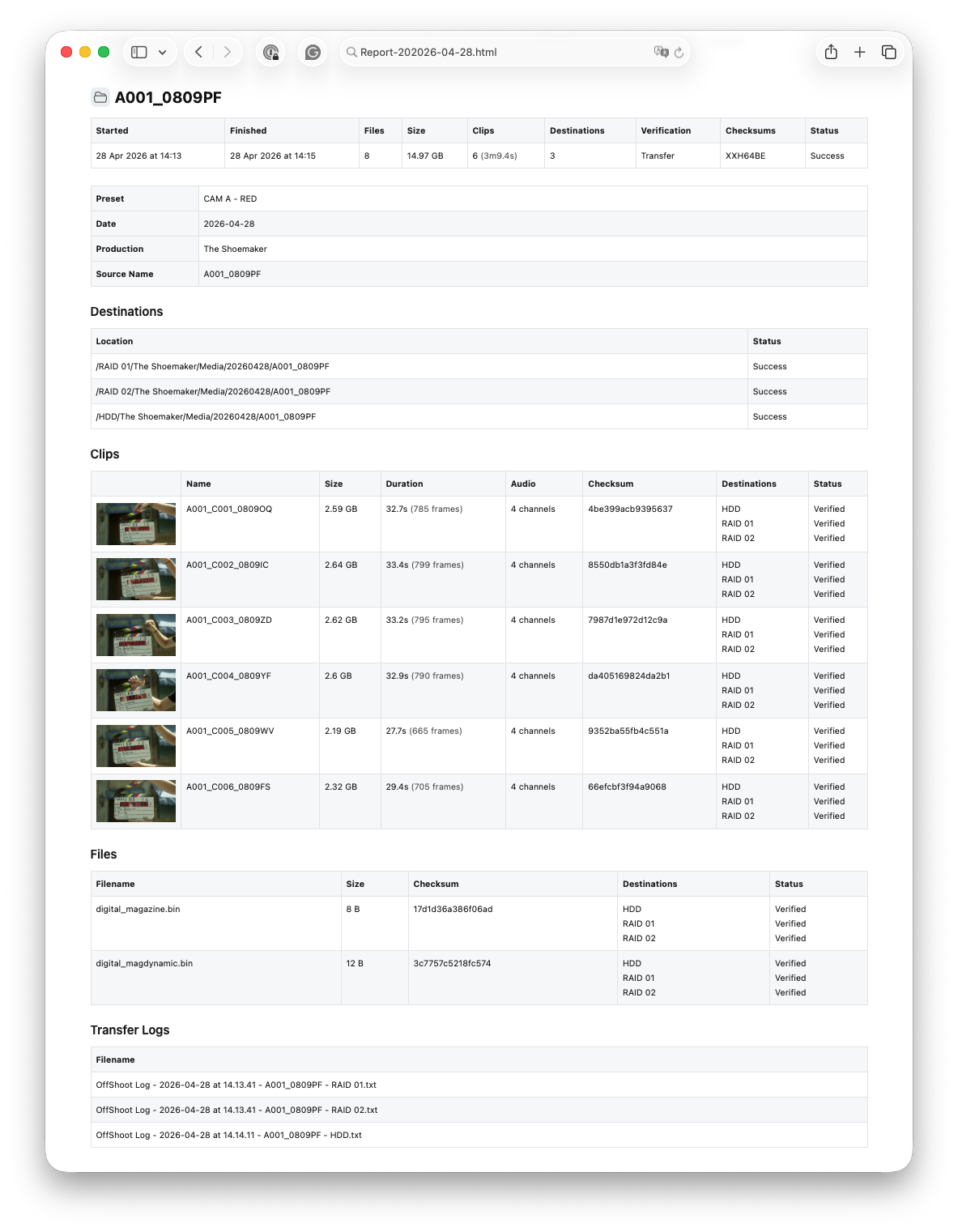
Besides a Sources overview, a Source details view is included too. As all links in Reports are clickable, it’s very easy to navigate between your cards and back up to the main sections.
If you use presets in OffShoot, any of its elements are also included.
Files
Need to dig in? Looking for a sidecar file or asset that should be there? The final section will tell you the nitty-gritty details; it lists all files that are not a clip or related to a clip:
Hidden files are summarised, and the Transfer Logs that relate to this Report are listed too.
One more thing: Reports are not only available as a PDF, but also as a full-fledged HTML page.
Clip Awareness
In addition to file information, OffShoot can extract thumbnails and metadata from your media. When the Clip Awareness option is enabled, after a transfer, OffShoot will use the first destination to extract both thumbnails and metadata.
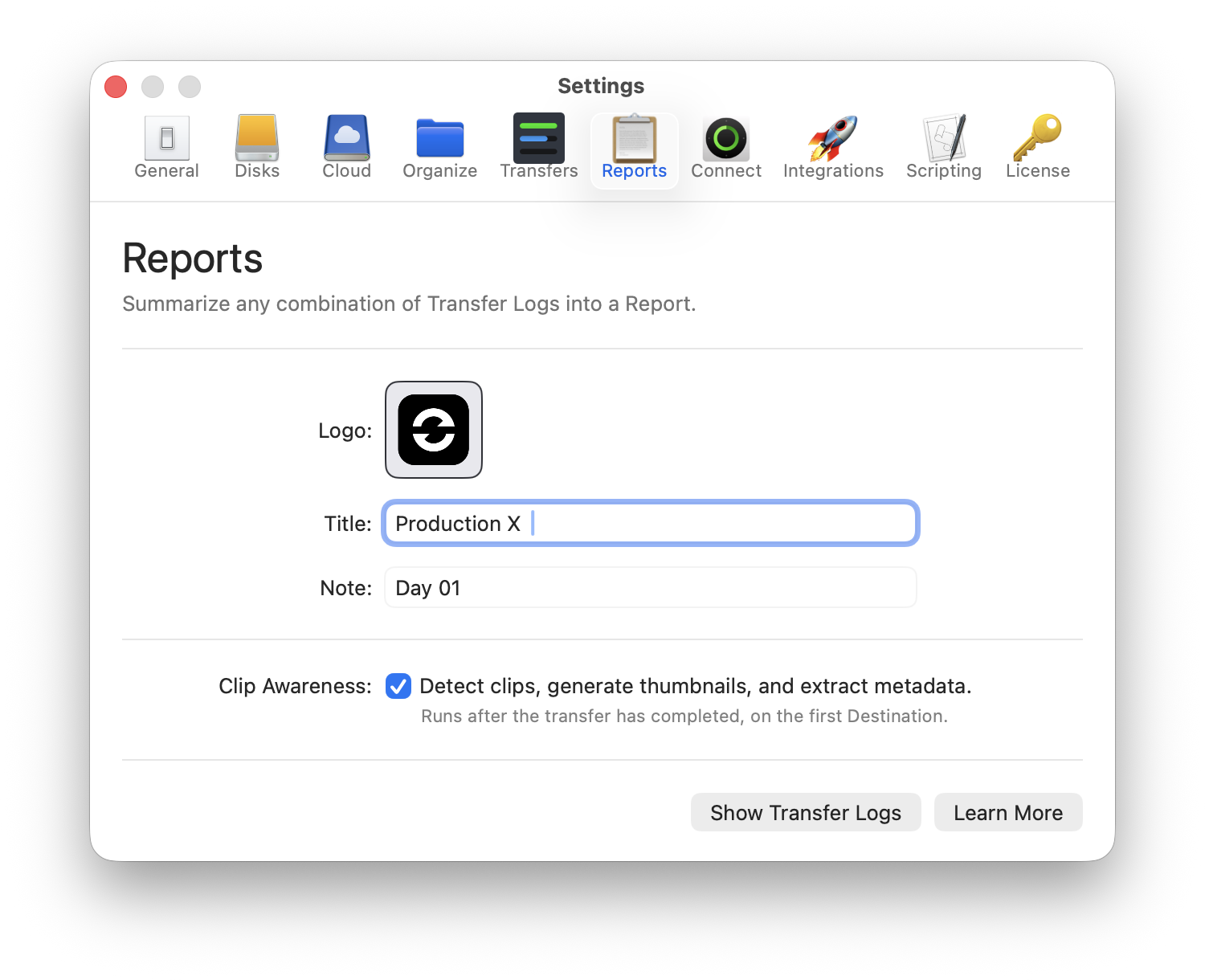
As most of OffShoot’s users deal with media, this is enabled by default. If you never work with media or are not allowed to create stills because the footage is sensitive, feel free to disable it.
For Pro users, Clip Awareness has an extra benefit: it’s not only used to populate the Report, but all of the metadata is also saved in a JSON. Together with OffShoot’s Scripting engine, you can use that wealth of data to trigger automations and feed data to other downstream apps like a MAM.
OffShoot vs. FoolCat
Obviously, we already had a Reporting app in our lineup for a good reason. There’s a big difference between the two: FoolCat creates Camera Reports, which are strictly focused on a single source, whereas OffShoot’s Reports can amalgamate multiple sources into a single Production Report.
Both apps allow you to add a logo, a custom title, and notes, and include EditReady’s Color Awareness technology to show you Rec.709 stills instead of log footage. On top of that, FoolCat offers custom LUTs to be added to your clips.
Rule of thumb: use OffShoot’s Reports as Production Report (e.g: “x sources got copied and verified successfully onto 3 destinations.”); use FoolCat as an in-depth Camera Report with more thumbnails and metadata.
Next Steps
This release is the first step towards more extensive reporting and metadata handling across all of our apps. For OffShoot, we’re leaning towards filtering based on elements and metadata, clip previews, and templates. We’d love to get your feedback on what you’d like to see in the next Reports update 🙏